 BerryCade
 11. System (Sistema)
11.1 Settings (Configurações)
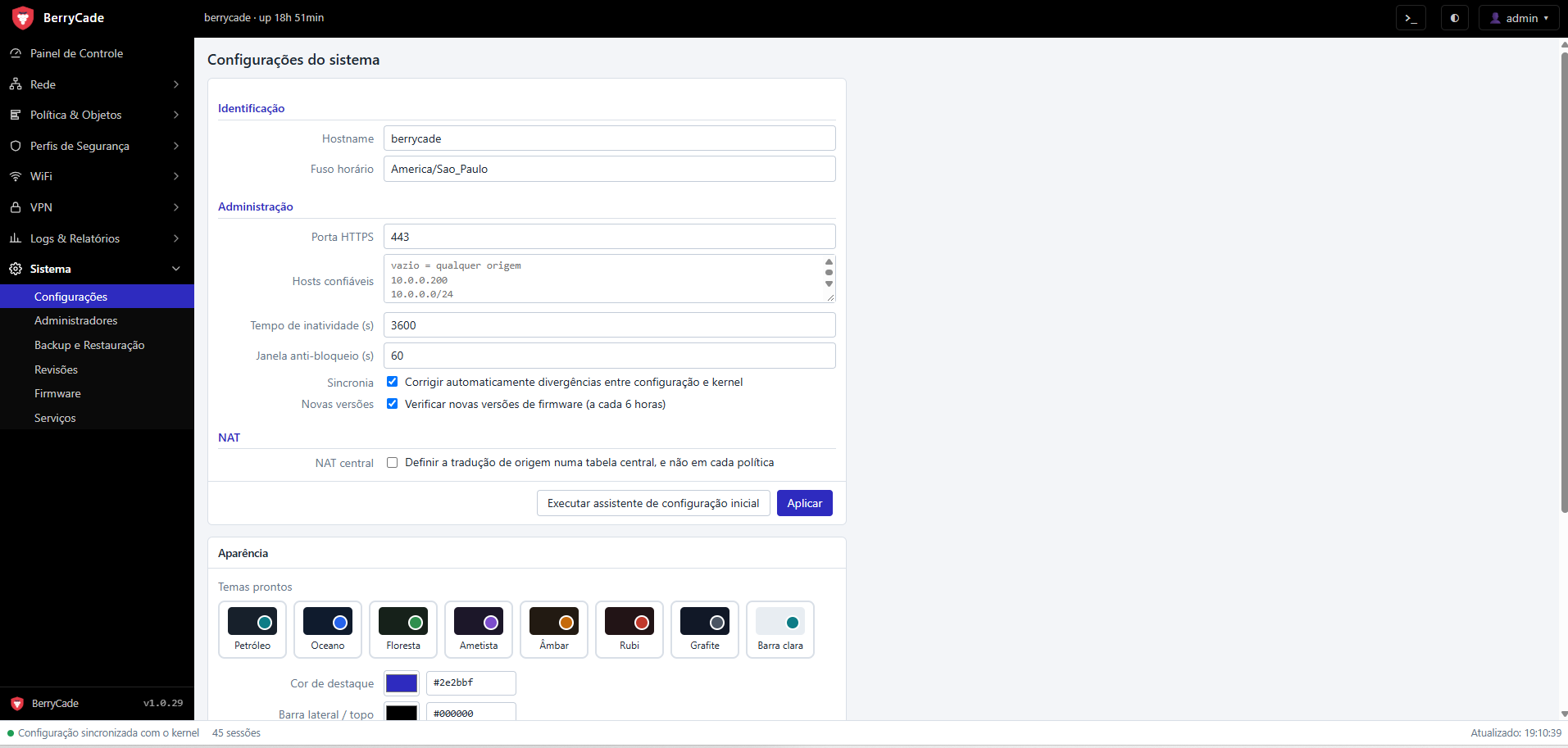
Figure 18 — Settings screen (Sistema › Configurações)
| Field | Description |
|---|---|
| Hostname / Fuso horário (Hostname / Time zone) | Device name (also applied to the operating system) and time zone. |
| Porta HTTPS (HTTPS port) | Panel port. The change takes effect immediately: open the new address and confirm within 60 s; without confirmation, the previous port comes back. |
| Hosts confiáveis (Trusted hosts) | IPs or networks that can access the panel and SSH (empty = any source). Your current IP must be in the list. |
| Tempo de inatividade (Idle timeout) | Time, in seconds, until the panel session expires. |
| Janela anti-bloqueio (Anti-lockout window) | Time allowed to confirm a change before it rolls back automatically. |
| Sincronia (Sync) | Automatically fixes differences between the configuration and the kernel. |
| NAT central (Central NAT) | Moves NAT from the policies to the central table (see 6.4). |
| Aparência (Appearance) | Preset themes, accent, sidebar and menu text colors, light/dark mode, density and Mostrar dicas (Show tips). |
This screen also has the Executar assistente de configuração inicial (Run initial setup wizard) button.
11.2 Administrators (Administradores)
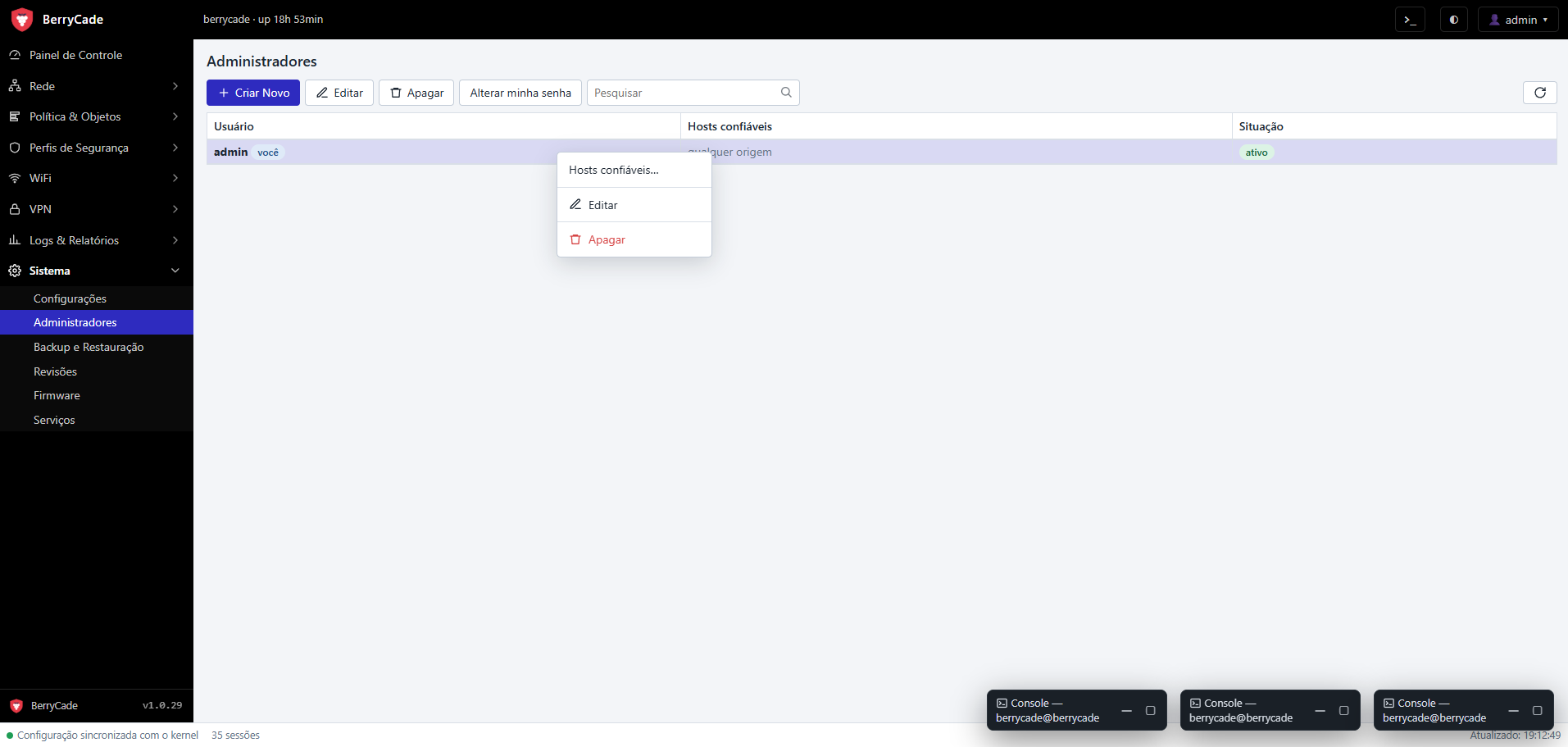
Figure 19 — Administrators screen (Sistema › Administradores)
Creates administrators (username and initial password, which must be changed at first login), removes administrators and sets hosts confiáveis por administrador (trusted hosts per administrator) — each one can log in only from the allowed IPs. Alterar minha senha (Change my password) changes the current user's password and ends that user's other sessions.
Tip: after 5 failed login attempts within 5 minutes, the IP and the user are blocked for 5 minutes. You can remove the block from the command line (chapter 12).
11.3 Backup and Restore (Backup e Restauração)
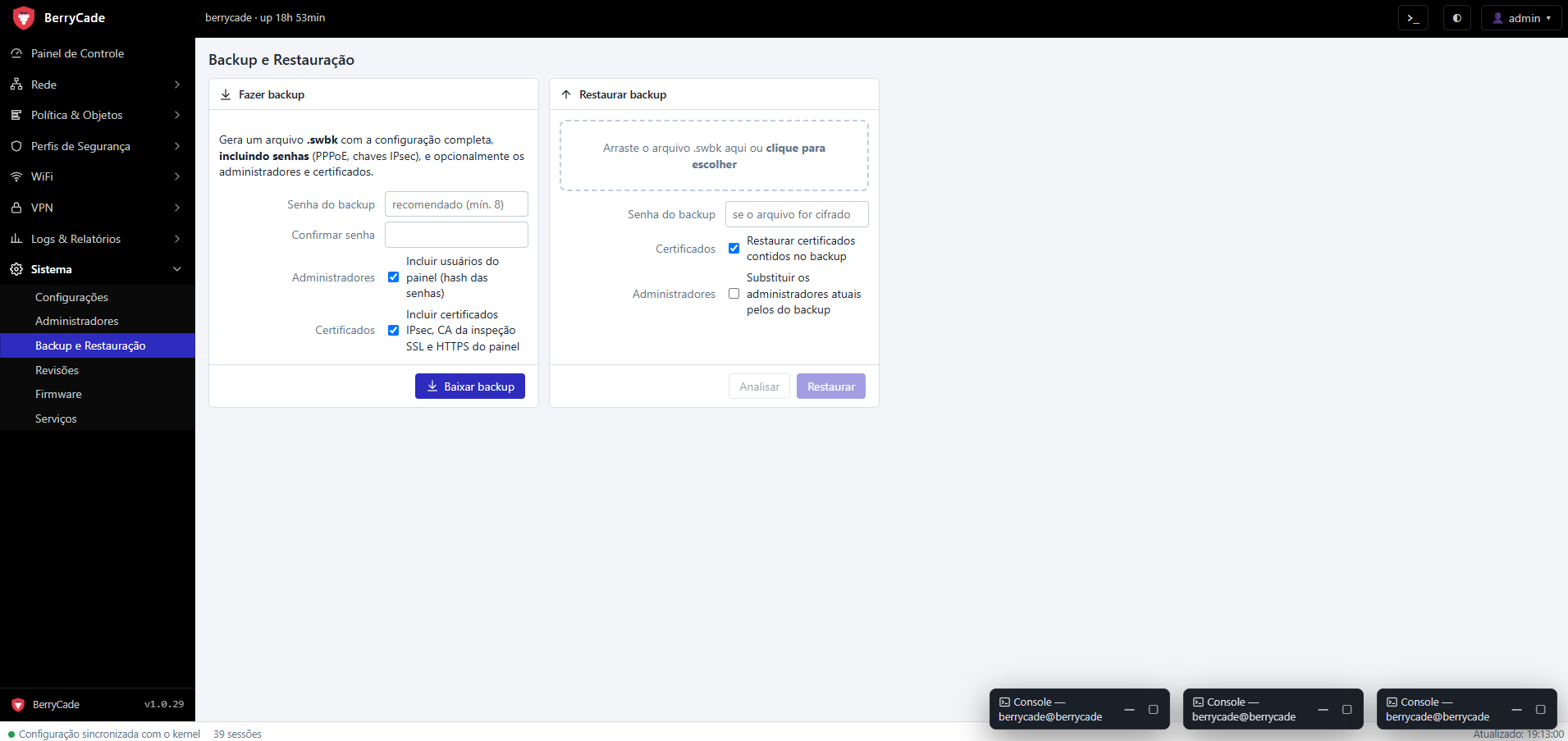
Figure 20 — Backup and Restore screen (Sistema › Backup e Restauração)
- Backup: downloads a file with the configuration and, if selected, the panel users and the certificates (IPsec, SSL inspection CA and panel HTTPS). It includes the PPPoE passwords. With Senha do backup (Backup password), the file is encrypted.
- Restauração (Restore): upload the file, check the summary and choose whether to restore the certificates and replace the administrators.
Warning: keep backups in a safe place and always prefer the encrypted version: they contain passwords and private keys.
11.4 Revisions (Revisões)
Each change creates a revision with date, author and description. Ver alterações (View changes) shows what changed, and Restaurar esta revisão (Restore this revision) returns the configuration to that point (also with confirmation and automatic rollback).
11.5 Firmware
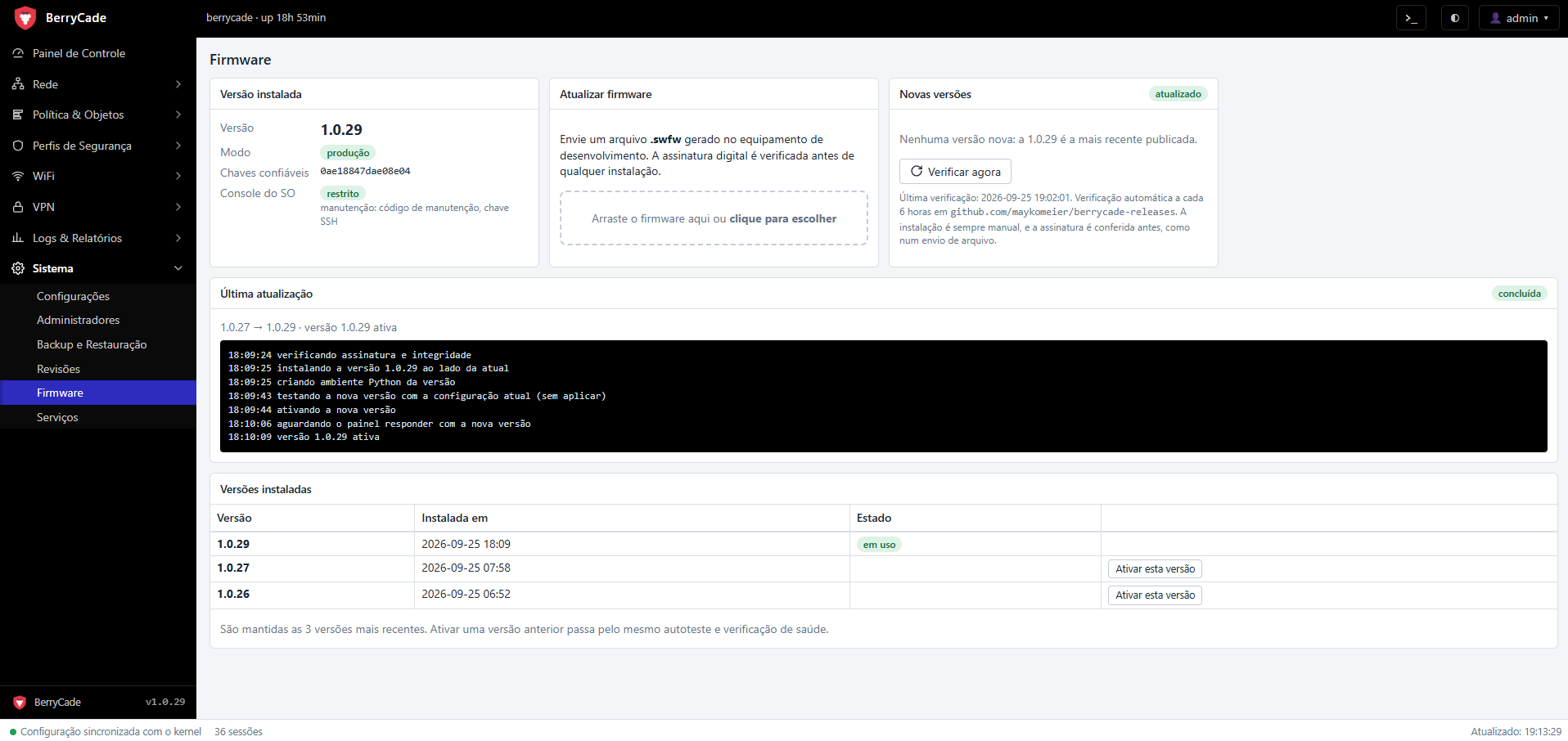
Figure 21 — Firmware screen (Sistema › Firmware)
- In Sistema › Firmware (System › Firmware), upload the .swfw file you received.
- BerryCade checks the digital signature and shows the version and release notes. Nothing is installed before this check.
- Click Instalar (Install). The new version is installed alongside the current one, tested with your configuration, and only then activated.
- If the new version does not start correctly, the device rolls back automatically to the previous one.
The 3 most recent versions are kept; you can reactivate any of them from the list of installed versions.
11.6 Services (Serviços)
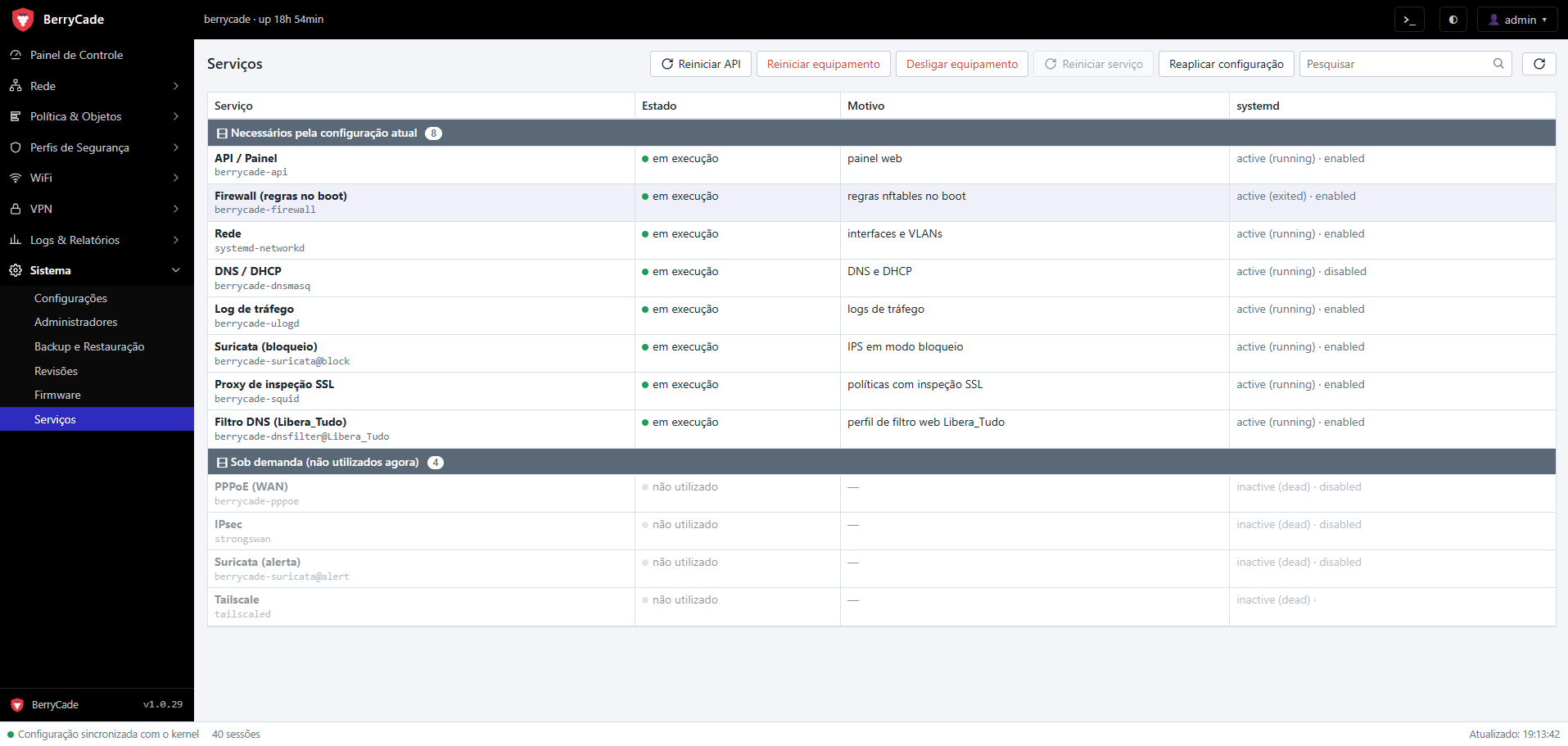
Figure 22 — Services screen (Sistema › Serviços)
Shows the state of each firewall service and the reason (for example, “não usado” (not used) when there is no IPsec tunnel). Lets you Reaplicar configuração (Reapply configuration) and Reiniciar o firewall (Restart the firewall).