 BerryCade
 3. First access
| Item | Default value |
|---|---|
| Panel address | https://10.0.0.99/ (or the IP set in berrycade.txt) |
| Username / password | admin / admin — you must change the password at the first login |
| LAN network | 10.0.0.99/24, gateway 10.0.0.254, DNS 8.8.8.8 |
| Certificate | Self-signed, generated on the device itself — the browser shows a warning the first time |
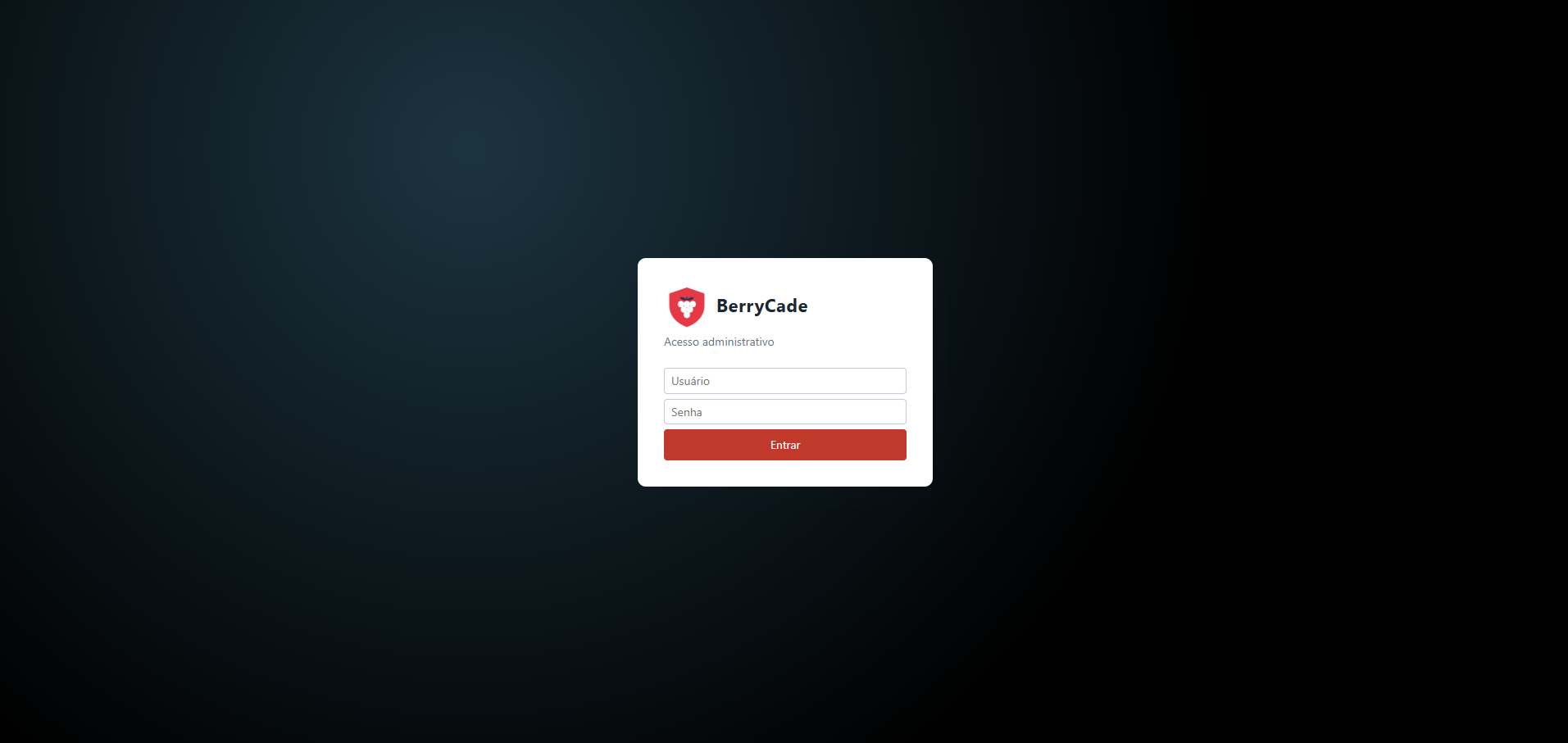
Figure 1 — Login screen
3.1 Initial setup wizard
After you change the password, the wizard opens automatically with five steps:
| Step | What to configure |
|---|---|
| 1. Portas (Ports) | Shows the detected ports (adapter model, MAC and whether a cable is connected). Choose which one is the LAN and which one is the WAN, and give each a name. The choice is saved by MAC, so the names don't swap between reboots. |
| 2. LAN | LAN IP/mask, gateway (only if the internet comes through the LAN), DNS and whether the firewall should hand out IPs over DHCP. |
| 3. WAN | Connection type: PPPoE (ISP username and password), DHCP, IP fixo (static IP) or configure later. |
| 4. Sistema (System) | Device name and time zone. |
| 5. Resumo (Summary) | Reviews everything and applies it. If the LAN IP changes, open the new address and confirm within 60 s. |
Note
Tip: to find out which physical port is which, plug in or unplug the cable and reopen the wizard: the “Link” column shows where a cable is connected. You can run the wizard again from Sistema › Configurações (System › Settings).